So there you are. Coffee’s getting cold, you just imported a preset pack you were genuinely excited about, and you click it onto your photo and… nothing. Or worse, it’s sitting there in the panel looking greyed out, like it’s silently judging you. 👻
Take a breath. You didn’t break Lightroom. You’re not bad at this. And no, you don’t need to buy a different preset pack and hope for better luck. I’ve been knee-deep in Lightroom catalogs for years, shooting weddings, batch-editing 800 images at 1 am, and yes, occasionally screaming quietly at a preset that refused to cooperate.
In almost every single case, the preset isn’t broken. Something specific and fixable is standing between it and your photo. This guide walks through exactly what that “something” is, depending on which symptom you’re actually seeing, because “not working” can mean four totally different problems, and most online articles lump them all together like they’re the same fix. They’re not. Let’s actually sort this out. 🛠️
Lightroom Presets Not Importing? Complete Troubleshooting Guide
First, Let’s Figure Out Which Problem You Actually Have.
Before you go preference-diving, tell me which of these sounds like you:
- “The preset is greyed out / italicized, and I can’t click it.” → That’s a compatibility issue.
- “I click it, and literally nothing happens to my photo.” → That’s an application issue.
- “My presets have vanished from the panel entirely.” → That’s a visibility issue.
- “I’m on my phone, and my presets aren’t there.” → That’s a sync issue, and it’s a completely different beast.
Each of these has a different root cause. Trying to fix a visibility issue with an application fix is like flossing to cure a headache, well-intentioned, wrong tool. Let’s go through each one.
- Lightroom Presets Not Importing? Complete Troubleshooting Guide
- Problem 1: The Preset Is Greyed Out or Won't Click ("Partially Compatible")
- Problem 2: You Click the Preset, and Nothing Happens
- Problem 3: Your Presets Have Disappeared From the Panel
- Problem 4: Lightroom Mobile Presets Are Missing (This One's Genuinely Different)
- Why Does My Preset Look Wrong Instead of Just Missing?
- The 60-Second Diagnostic Checklist
- The Real Takeaway
Problem 1: The Preset Is Greyed Out or Won’t Click (“Partially Compatible”)
This is the single most common reason people end up googling “Lightroom presets not working,” and it’s also the most misunderstood.
Lightroom presets aren’t really styles! They’re instructions. A preset says “set white balance to this, contrast to that, apply this color profile.” If your photo’s file type doesn’t support part of that instruction, Lightroom shrugs and dims the preset out rather than risk applying something broken.
The classic culprit is camera color profiles. Presets built around a Camera Standard or Camera Landscape profile expect a RAW file. Drop them on a JPEG, or a RAW file from a camera brand the preset wasn’t built for (Canon’s “Standard” profile behaves differently than Fuji’s “Provia,” for instance), and parts of that instruction set simply don’t translate. The preset isn’t lying to you. It’s telling you it can’t fully do its job with what you’ve handed it.
The fix:
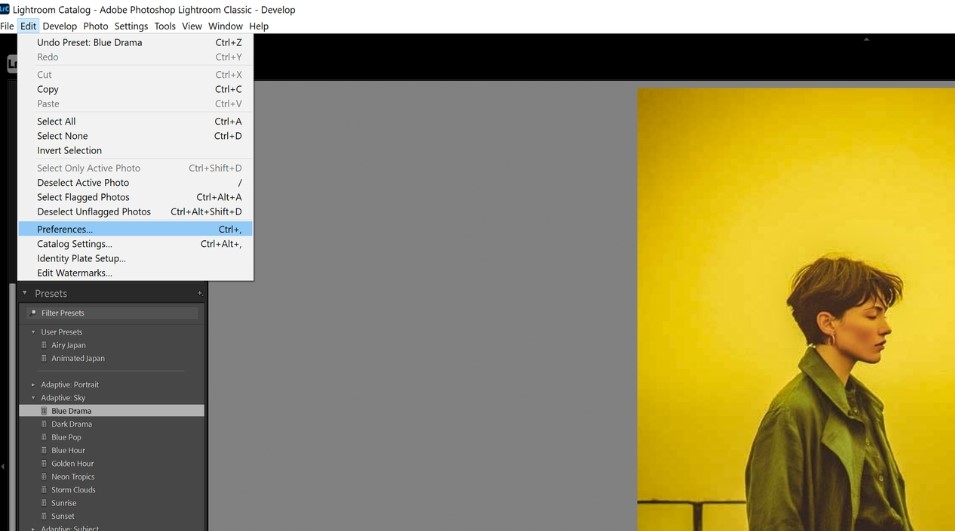
- Open Lightroom Classic → Edit (or Lightroom on Mac) → Preferences → Presets.
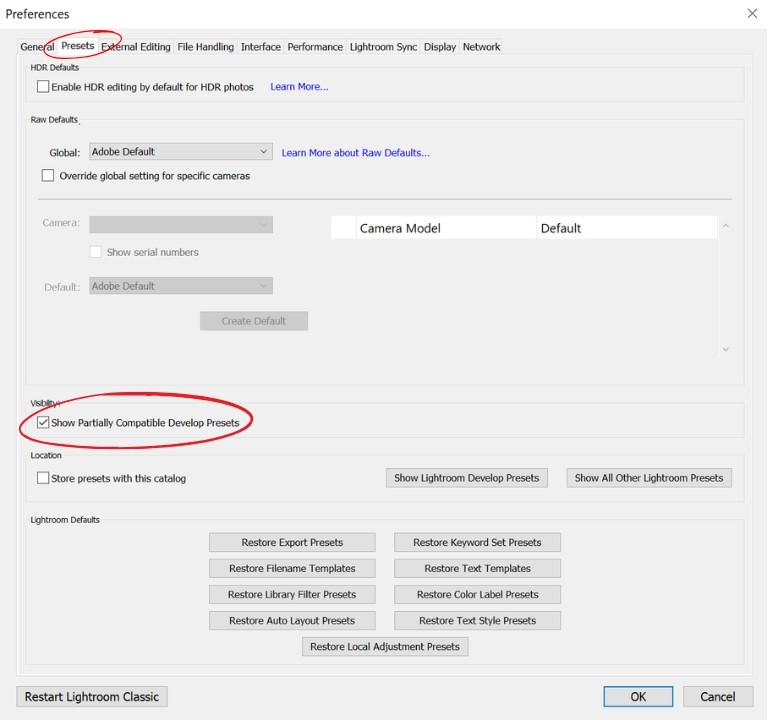
- Check the box for “Show Partially Compatible Develop Presets.”
- Head back to your Develop module. Greyed-out presets should now be selectable (still slightly dimmed to indicate partial compatibility – that’s normal, not a bug).
If you’re shooting JPEGs, know this up front: most professionally made presets are designed and tested on RAW files. JPEGs have already been processed and compressed by your camera, so there’s less data for Lightroom to push around. A preset can still apply, but you’ll get more muted results than the preview promised. If you want presets to behave exactly as advertised, shoot RAW when you can.
Problem 2: You Click the Preset, and Nothing Happens
This one’s spookier, and honestly, it’s the one that makes people question their sanity. The preset highlights in the panel. It even shows the correct preview when you hover. You click it… and the photo just sits there, unchanged, like it didn’t hear you.
Here’s what’s almost always going on:
A. Lightroom’s preferences file got a little corrupted
Lightroom keeps a preferences file that quietly tracks UI behavior, panel states, and more. After enough use (or, amusingly, after just scrolling through and hovering over a lot of presets in one sitting), this file can get a bit scrambled. When it does, presets can preview correctly but fail to actually commit changes to your image.
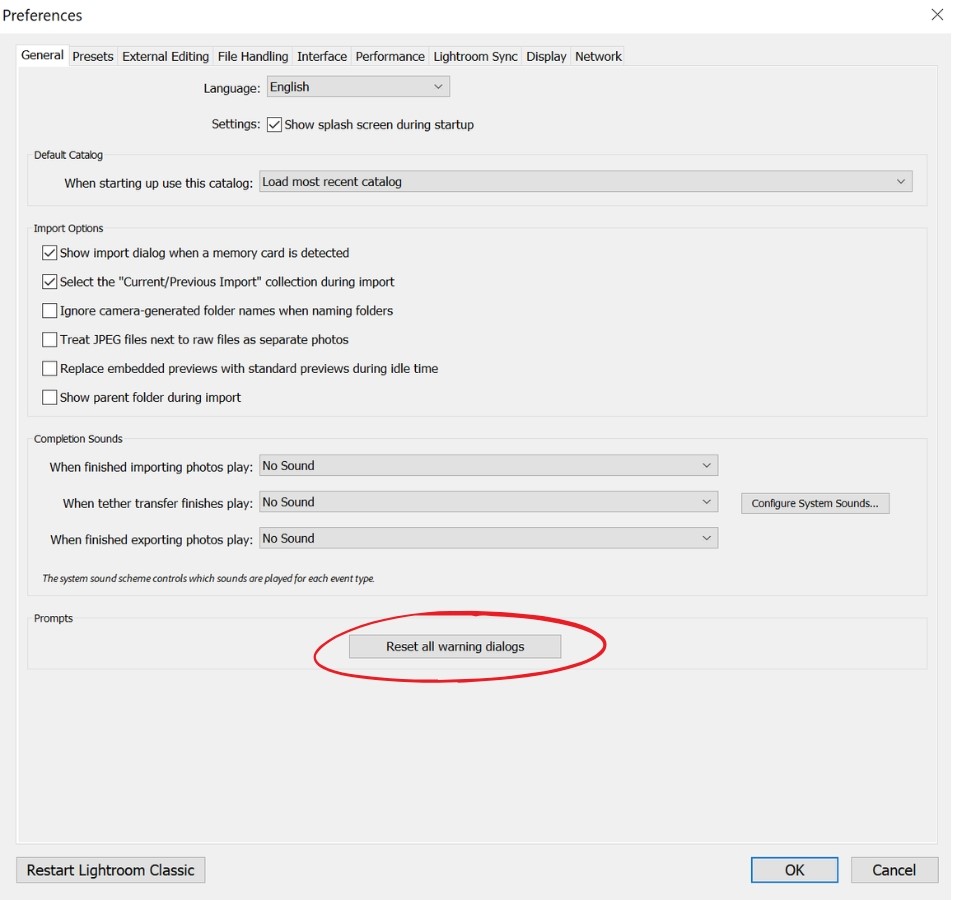
The fix: Reset Lightroom’s preferences.
- On Mac: Quit Lightroom, then hold
Optionwhile relaunching, or navigate to~/Library/Preferences/and locate the Lightroom plist file. - On Windows: Quit Lightroom, hold
Ctrl + Shiftwhile relaunching, and confirm the reset prompt.
Don’t panic! This resets interface preferences only. Your catalog, your photos, your edits, and your presets themselves are completely untouched. Think of it as restarting your router, not reformatting your hard drive.
B. A plugin is interfering
If you’ve got third-party plugins installed, one of them might be quietly intercepting the Develop module behavior. Launch Lightroom in Safe Mode (hold Ctrl + Alt on Windows or Option + Shift on Mac while launching) and try the preset again. If it works in Safe Mode, you’ve found your culprit. Disable plugins one at a time until you isolate the offender.
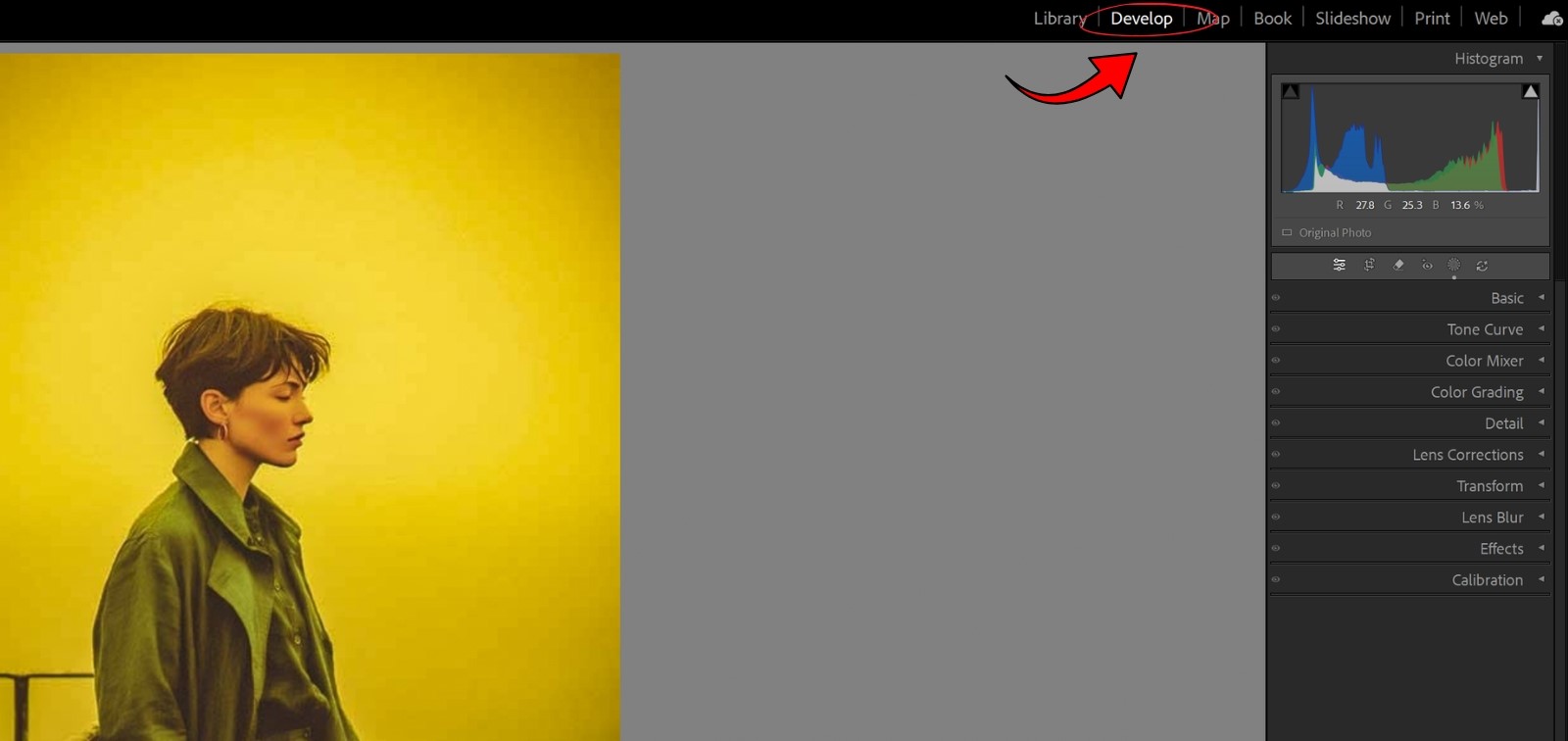
C. You’re in the wrong module, or no photo is actually loaded
It’s genuinely one of the top reasons this happens. Presets only apply in the Develop module, and Lightroom needs an image actively selected (not just visible in the filmstrip) before clicking a preset does anything. Double-check you’re not accidentally in Library or Map view.
Problem 3: Your Presets Have Disappeared From the Panel
If your presets used to be there and now they’re just… gone, this is almost always a storage location mismatch, not data loss. Your presets didn’t get deleted; Lightroom is just looking in the wrong place for them.
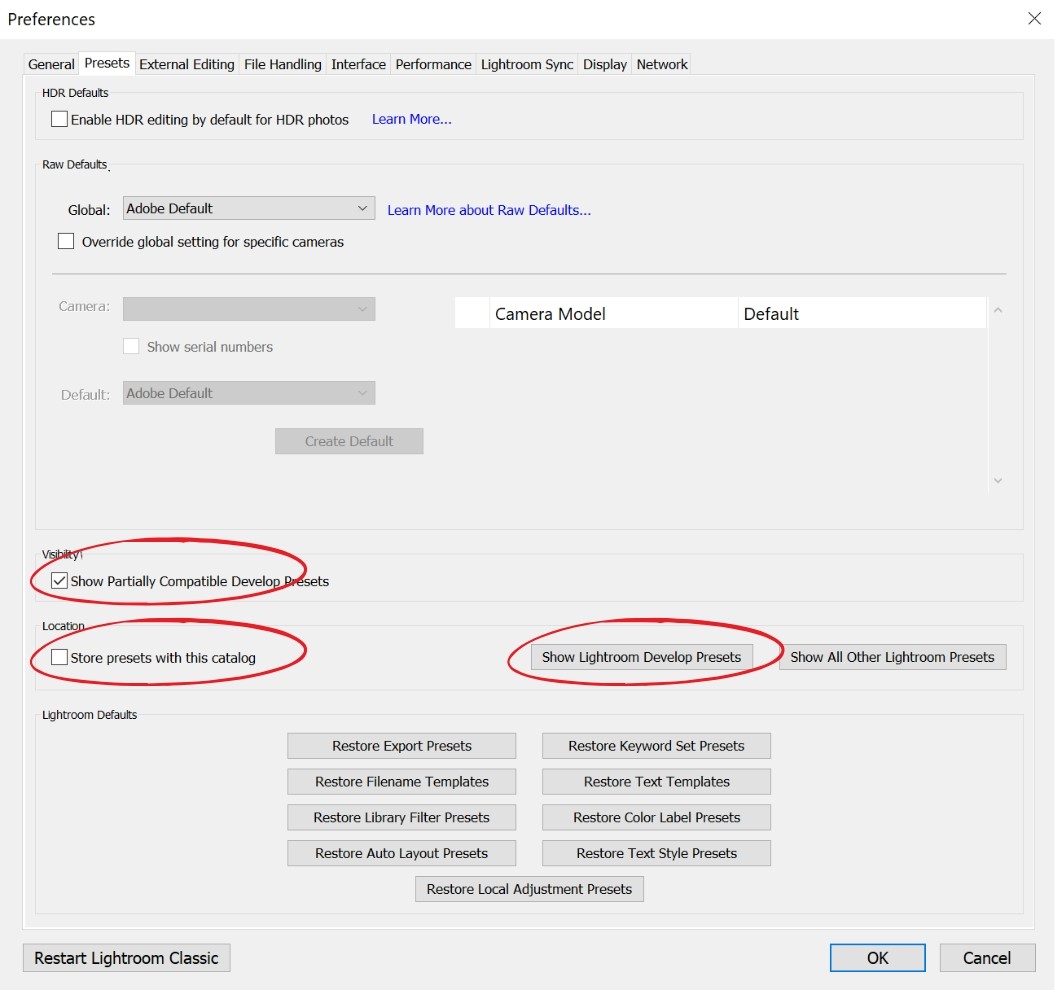
The fix, step by step:
- Go to Preferences → Presets.
- Look at “Store presets with this catalog.” If this is checked, your presets live inside that specific catalog file, meaning if you open a different catalog, they vanish from view (they’re not gone, just elsewhere). Unchecking this stores presets centrally on your system, so they appear in any catalog you open.
- While you’re here, also confirm “Show Partially Compatible Develop Presets” is checked (see Problem 1 – these two settings are best friends and travel together).
- Click “Show Lightroom Presets Folder” at the bottom of this panel. This opens the actual folder on your hard drive. If your preset files (.xmp for modern Lightroom Classic, occasionally older .lrtemplate files) aren’t physically in there, that’s your answer. They need to be reimported.
Quick gut-check on file format: since Lightroom Classic 7.3, presets use the .xmp format. If you’re working with very old .lrtemplate files from a preset pack downloaded years ago, back them up before any update, since newer Lightroom versions handle them differently.
Problem 4: Lightroom Mobile Presets Are Missing (This One’s Genuinely Different)
This is the gap most “Lightroom presets not working” guides skip entirely, and it trips up a ton of people, especially anyone who bought a preset pack designed for mobile.
Here’s the thing nobody tells you clearly: Lightroom on mobile and Lightroom Classic on desktop don’t sync presets with each other automatically. Photos sync between them. Presets do not. They’re two separate ecosystems that happen to share a name.
So if you built or bought presets in Lightroom Classic, and you’re wondering why your phone doesn’t have them, that’s not a bug. That’s just how it’s built. To get presets from desktop into Classic, you have to sync them to Lightroom desktop (which needs an active subscription), then export and install them in Classic.
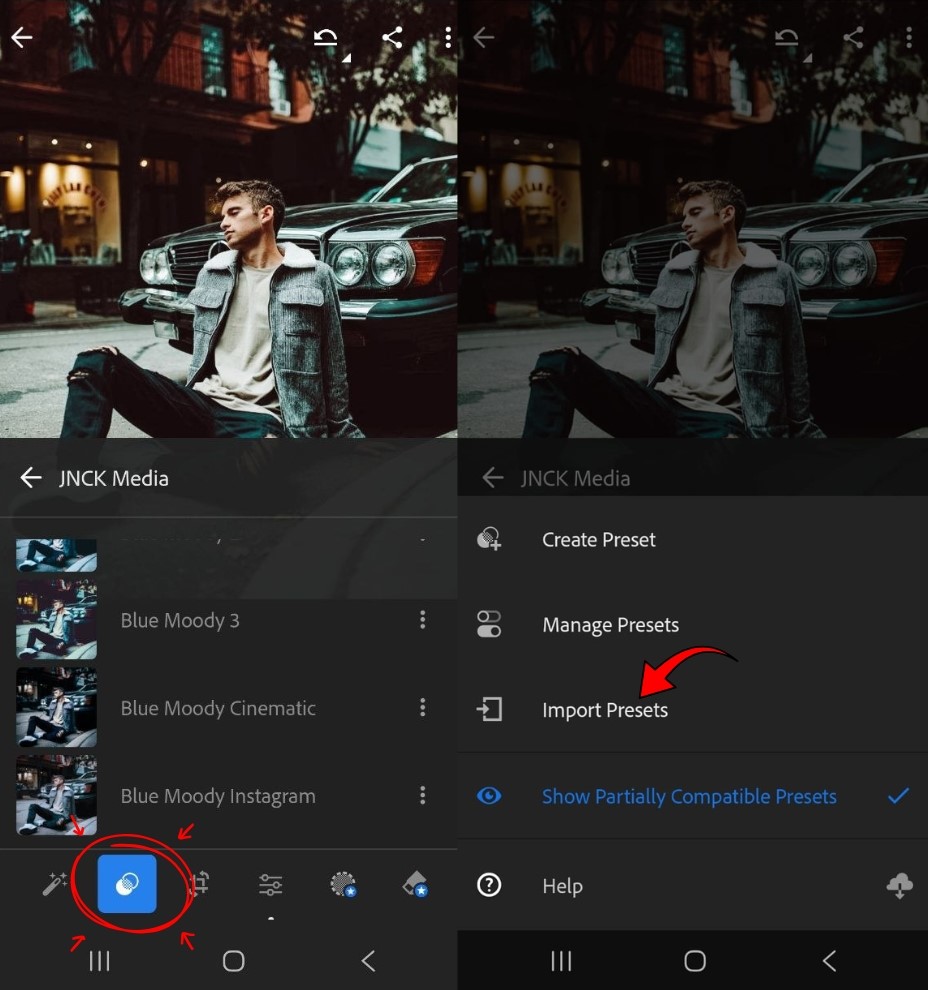
If you’re importing a mobile-specific preset pack (usually .xmp or .dng files) directly into the Lightroom mobile app and it’s not showing up, walk through this:
- Update the app. Lightroom mobile ships frequent updates, and an outdated version is a surprisingly common reason imports silently fail.
- Open a photo first. Just like a desktop, a mobile won’t show presets in the panel until you’ve got an image open in the editor.
- Import the file directly through Lightroom’s own import flow. Tap Presets → the Options menu → Import Presets. rather than opening the file in your Files app or Google Drive. Lightroom needs to ingest it through its own interface, or it won’t register.
- Don’t import a zipped folder. Mobile Lightroom needs the individual .xmp or .dng files extracted first; it can’t read a .zip directly.
- iPhone owners, here’s a quirk worth knowing: in recent versions, importing presets built on color profiles (rather than basic adjustments) can behave inconsistently on iOS, even when the same pack imports fine on Android. If your preset imports but looks visually “off” only on iPhone, this profile-dependency issue is very likely why it’s a known platform gap, not something you did wrong.
- Check your sync status and subscription. If presets were supposed to arrive via cloud sync rather than manual import, an expired or paused Creative Cloud subscription will quietly stop that sync cold.
Why Does My Preset Look Wrong Instead of Just Missing?
Different problem, equally common, and worth its own section because it’s an easy trap to fall into.
A preset is a fixed set of instructions. Your photo is not fixed. It’s a unique combination of lighting, exposure, and color that changes every single time you press the shutter. A preset built for warm golden-hour light will produce something completely different from a flat, overcast, blue-toned shot. That’s not the preset malfunctioning. That’s the preset doing exactly what it was told to do on an input it wasn’t designed for.
Before you blame the preset (or the person who made it), check your photo’s baseline:
- Is the exposure already close to correct, or are you trying to ask one click to fix a massively underexposed shot?
- Does the white balance look reasonable before you apply anything?
- Is this a RAW file, or a JPEG that’s already had its dynamic range squeezed by your camera?
A good rule I picked up early on: presets are a starting point, not a finish line. Even the best ones are built to get you 80% of the way there, with a quick exposure or white-balance nudge expected afterward. If you’re chasing pixel-perfect, one-click magic on every single image regardless of lighting, that’s the part to adjust, not the preset pack.
The 60-Second Diagnostic Checklist
Bookmark this part. Next time a preset misbehaves, run through it top to bottom before you do any deep troubleshooting:
- Is a photo actually open in the Develop module (not Library)?
- Is “Show Partially Compatible Develop Presets” checked in Preferences?
- Is “Store presets with this catalog” set the way you expect (and consistent across catalogs)?
- Are you working from a RAW file, or at least aware that a JPEG will look different?
- Have you tried the preset on a second, different photo to rule out a one-off image issue?
- If on mobile: is the app updated, and did you import through Lightroom’s own Import Presets menu?
- If results look “off” rather than “missing”: is this a lighting mismatch, not a software bug?
- Still stuck? Try Safe Mode to rule out a plugin, then reset preferences as a last resort.
If you’ve gone through all of that and you’re still stuck, it’s worth trying the preset in a completely fresh Lightroom user profile or a different machine. If you have access to one that isolates whether it’s something specific to your install versus the preset file itself being corrupted (which does happen, especially with presets downloaded from sketchy free sites), always grab presets from sources you trust.
The Real Takeaway
Almost every “Lightroom preset not working” panic boils down to one of four very ordinary things: a compatibility flag hiding the preset, a scrambled preferences file, a storage setting pointing Lightroom to the wrong folder, or mobile/desktop sync simply not working the way people assume it does. None of these means your preset pack is junk, and none of them means you’ve done something unusually wrong.
Run through the diagnostic checklist, match your symptom to the right section above, and you’ll very likely have this sorted in the time it took you to read this article, which is a better return than the hour I spent the first time this happened to me, mashing buttons and questioning my career choices. 😅
Now go make those photos look the way you pictured them. They’re waiting on you, not the other way around.
More For You:
Lightroom Classic Vs Lightroom CC
DNG Vs XMP Lightroom Presets – The Real Difference And Usage
Are Paid Lightroom Presets Actually Worth It?