I’ve been a Lightroom user since the early days, and the single most common question I still get from photographers (both beginners and seasoned pros) is this: “Pauline, should I use Lightroom Classic or Lightroom CC?”
And honestly? I get it. Adobe really did us dirty with the naming confusion. Two apps. Similar names. Completely different vibes. If you’ve ever opened the Adobe Creative Cloud launcher and stared blankly at both icons, wondering what on earth the difference is, you’re in very good company.
let’s settle this once and for all. By the end of this guide, you’ll know exactly which version is built for your workflow, and you won’t have to waste another minute second-guessing yourself.

Pauline Jackson
My passion is creating Lightroom presets that bring out the best in every photo. From subtle color refinement to bold creative looks, I design tools that help photographers edit with confidence.
Which Lightroom Is Actually Better? Classic vs CC Explained
Great question. Let’s rewind for a second. Back in 2017, Adobe did something a little controversial: they split the original Lightroom into two separate applications. The classic desktop app was rebranded as Lightroom Classic, and a brand-new cloud-first app was officially launched as just “Lightroom”, but most photographers (and this guide) call it Lightroom CC to avoid confusion.
Adobe’s logic? One app for the traditional desktop-focused photographer who wants full control. Another for the modern, mobile-first photographer who wants to edit anywhere, on any device. Totally makes sense in theory. In practice? It created years of head-scratching.
The good news: you don’t have to choose blindly. Your Creative Cloud subscription includes both, so you can try each one, and after reading this, you’ll know exactly what you’re getting into.
| Feature | Lightroom Classic | Lightroom CC |
|---|---|---|
| Photo Storage | Local (your drives) | Cloud (Adobe servers) |
| Desktop-Only | Yes | No – multi-platform |
| Mobile App | Limited sync | Full native app |
| Offline Editing | Full offline access | Partial (synced images only) |
| Virtual Copies | Yes | No |
| Print Module | Yes | No |
| Book Module | Yes | No |
| Tethered Shooting | Yes | No |
| Smart Collections | Yes | (Albums only) |
| Plugin Support | 100+ plugins | Under 5 major ones |
| AI Masking | Yes | Yes |
| AI Denoise | Yes | Yes |
| Generative Remove | Yes | Yes |
| Cross-Device Sync | Partial (Smart Previews) | Full seamless sync |
| Interface Style | Dense, professional | Clean, minimal |
| Best For | Professionals, high-volume | Beginners, mobile-first |
- Pauline Jackson
- The Core Difference
- 1. File Storage & Organization: The Biggest Battleground
- 2. Editing Features: Where Classic Still Wins
- 3. Cross-Device Access: CC's Crown Jewel
- 4. AI Tools in 2026: A Closer Look
- 5. Pricing: They Actually Cost the Same
- 6. Interface & User Experience: Which Is Friendlier?
- 7. Can You Use Both? (Spoiler: Yes!)
- 8. Who Should Use Which? The Definitive Answer
- 9. Is Lightroom Classic Going Away?
The Core Difference
Before we go deep, here’s the simplest way to think about this:
- 🖥️ Lightroom Classic = Your photos live on your hard drive. You’re in control. Built for serious, high-volume, desktop-based workflows.
- ☁️ Lightroom CC = Your photos live in Adobe’s cloud. Accessible anywhere, on any device. Built for flexibility and simplicity.
That’s it, at the heart of it. But the rabbit hole goes much deeper, and the right choice depends entirely on how you shoot and how you work. Let’s walk through every major difference.
1. File Storage & Organization: The Biggest Battleground
This is where the two apps diverge most dramatically, and it’s the decision that will ripple through everything else in your workflow.
Lightroom Classic: You’re the Boss of Your Files
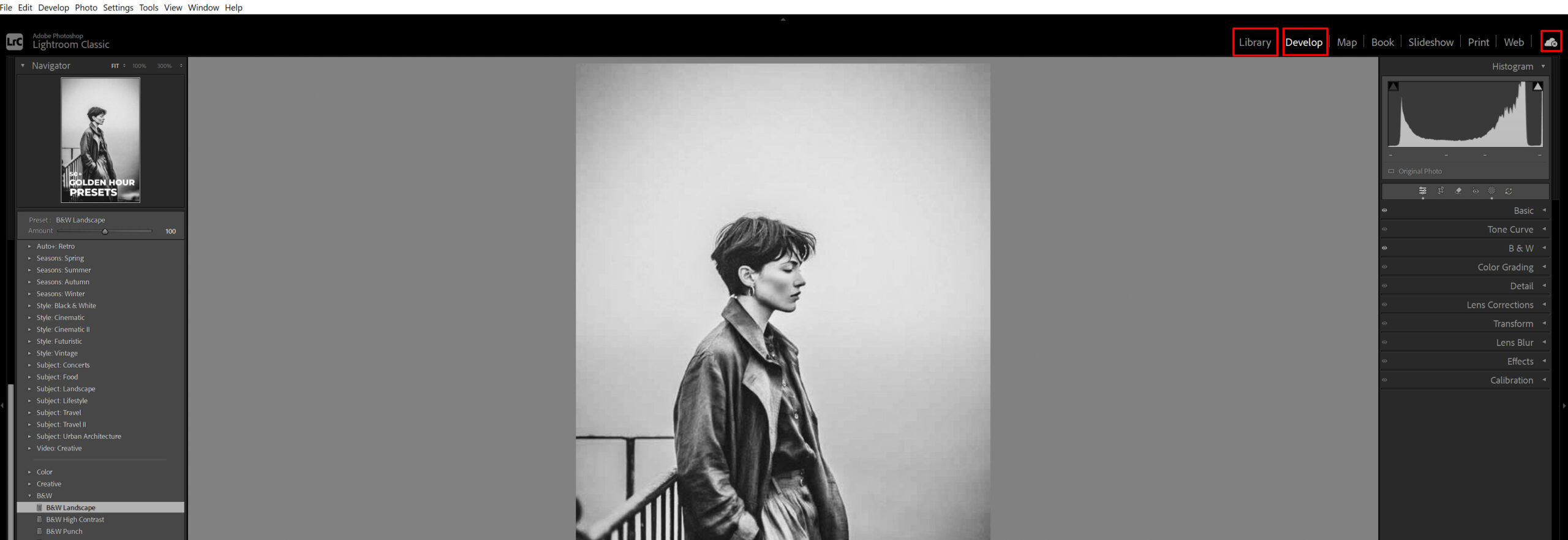
When you import photos into Lightroom Classic, your original RAW files stay exactly where you put them on your internal SSD, external hard drive, NAS device, wherever. The Lightroom catalog is simply a database that tracks where those files live and stores all your edit history. Your actual photos never move unless you tell them to.
This means:
- ✅ Full control over folder structure (you can build your own system exactly how you like).
- ✅ You can rename folders, move them around, and organize by client, date, project, whatever works for you.
- ✅ No internet required for day-to-day editing.
- ✅ No monthly cloud storage fees eating into your budget.
The trade-off? You’re responsible for your own backups. The catalog system can feel intimidating if you accidentally move files outside of Lightroom. Things can get messy fast if you’re not organized. But once you nail the workflow? It’s incredibly powerful.
Pro tip: Lightroom Classic has a feature called Smart Previews, lightweight copies of your images that let you edit on your laptop even when your external hard drive is back home. Heading on a trip and don’t want to lug your 8TB drive? Smart Previews have you covered.
Lightroom CC: Everything Lives in the Cloud
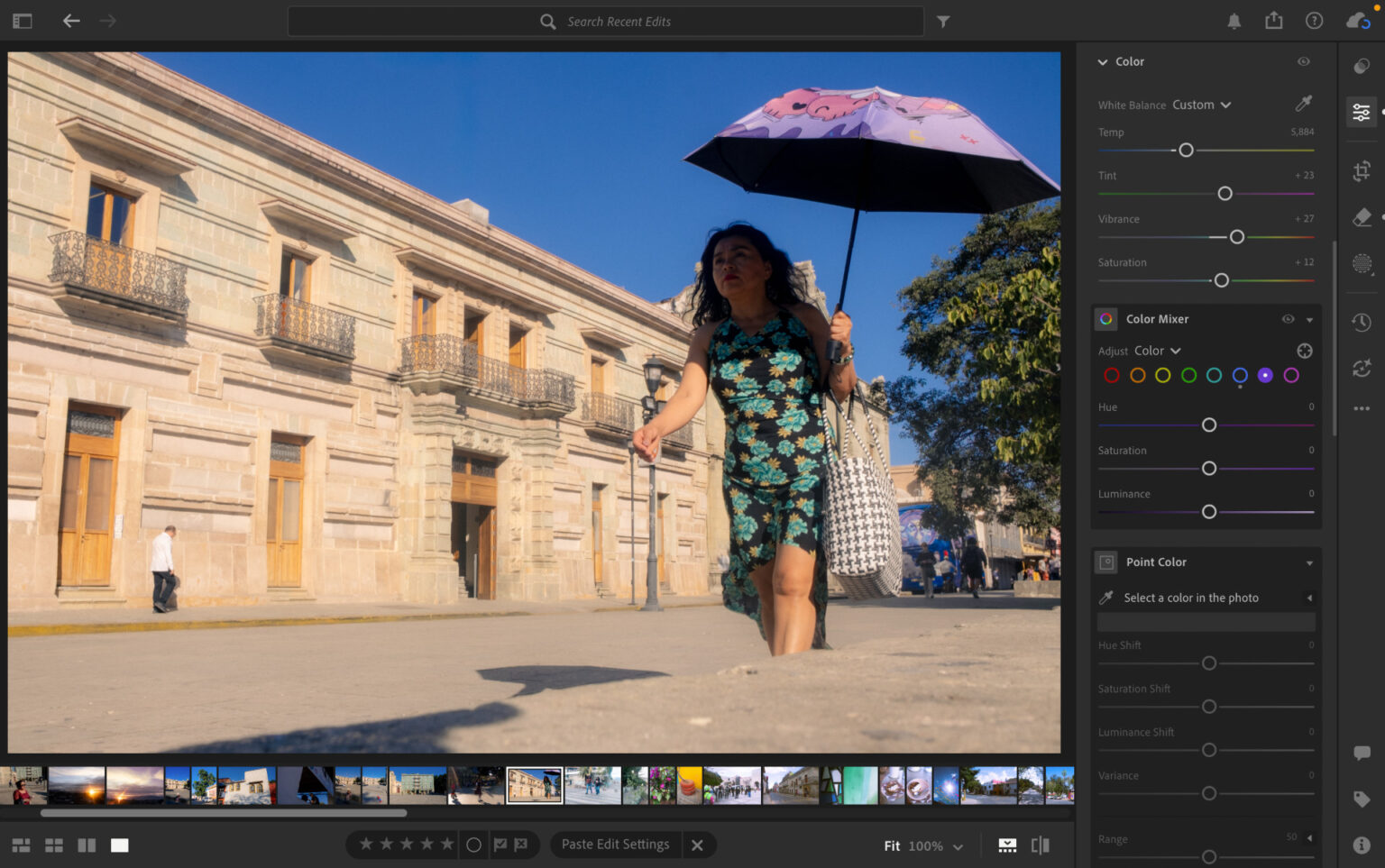
With Lightroom CC, the workflow is almost the opposite. When you import photos, they’re automatically uploaded to Adobe’s cloud servers. Your edits, metadata, and albums all sync in real time across every device you own. Phone, tablet, desktop, web browser, it doesn’t matter.
The appeal is obvious: total seamlessness. Start editing a portrait on your iPad on the couch, and pick up where you left off on your desktop the next morning. No manual syncing. No thinking about where files are. Just… edit.
The catch? Cloud storage is limited and costs money. The base Photography Plan gives you 1TB of cloud storage. Sounds like a lot until you’re a wedding photographer shooting 2,000 RAW files per weekend. Those terabytes fill up fast.
2. Editing Features: Where Classic Still Wins
Here’s something Adobe doesn’t shout from the rooftops: as of 2026, Lightroom CC still has a roughly 15% feature gap compared to Classic. Both apps share the same powerful Adobe Camera Raw processing engine, so a photo edited identically in both apps will look identical. But the tools available to get there are not equal.
What BOTH Apps Have in 2026 (The Good Stuff)
Adobe has done a great job bringing its headline AI features to both platforms:
- AI Masking (Select Subject, Sky, Background): works identically and absolutely crushes it in both versions.
- AI Denoise: the same industry-leading noise reduction across the board.
- Generative Remove (powered by Adobe Firefly): remove distracting objects and let AI fill the gap, available in both.
- Adaptive Presets: AI-driven presets that automatically adjust to your subject.
These tools are genuinely game-changing, and it’s great that neither version is left behind on the AI front.
What ONLY Lightroom Classic Has
This is where Classic pulls ahead for professionals:
🔢 Virtual Copies: This is huge. In Classic, you can create multiple edit versions of the same photo (color version, B&W, cropped for Instagram, etc.) without duplicating the original file. In CC? You have to actually duplicate the photo, which quickly bloats your storage.
📜 Advanced History Panel: Classic keeps a granular, linear history of every single edit you’ve ever made to a photo. Want to step back 47 edits to see what changed? No problem. CC’s history is far more limited.
🖨️ Print, Book & Map Modules: The Print module in Classic is a professional-grade output tool with precise control over paper size, print sharpening, color management, and contact sheets. Wedding photographers, portrait photographers, and anyone delivering physical prints rely on this. CC has no equivalent. The Book module lets you design and order photo books directly. The Map module displays your geotagged images on an interactive map. None of these exist in CC.
📸 Tethered Shooting: Connect your camera directly to your computer and see live shots appear in Lightroom as you take them. A staple feature for studio and portrait photographers. Classic has it. CC doesn’t.
🔌 Plugin Support: Lightroom Classic supports over 100 professional plugins, tools like Imagen AI for automated culling, Loupedeck for hardware control, and Negative Lab Pro for film scanning. Lightroom CC supports fewer than five major integrations. For specialized workflows, this gap is critical.
📂 Smart Collections: Set rules (e.g., “5-star rating + flagged + keyword: wedding”) and Classic automatically populates collections for you. It’s one of those features that sounds minor until you’re managing 50,000 images and suddenly it’s the most important thing in your life.
3. Cross-Device Access: CC’s Crown Jewel
Let’s give credit where it’s due. Lightroom CC is genuinely better for multi-device workflows.
If you’re the kind of photographer who:
- Shoots on your phone and wants edits synced to your desktop immediately.
- Travels constantly and edits on an iPad.
- Wants to share finished galleries with clients from your phone.
- Collaborates with other editors remotely.
…then Lightroom CC’s seamless cross-device experience is legitimately hard to beat. Classic’s Smart Previews offer some flexibility, but it’s not as smooth. CC was built from the ground up for this, and it shows.
Lightroom CC is available on:
- 🖥️ Windows & macOS (desktop).
- 📱 iOS & Android (mobile).
- 💻 ChromeOS.
- 🌐 Web browser (any device, anywhere).
Lightroom Classic is desktop-only: Windows and macOS. That’s it.
4. AI Tools in 2026: A Closer Look
This year, AI is no longer a “nice to have” in photo editing. It’s the whole game. Let me walk you through how both apps stack up on the tools photographers actually use daily.
AI Masking
Both apps use the same masking engine, and it’s phenomenal. Select your subject, sky, or background with one click, and make targeted adjustments without any manual brushwork. I remember spending 20 minutes hand-painting masks on portraits in 2015. Now it takes 3 seconds. We truly live in the future.
AI Denoise
Available in both. It’s still one of the most impressive upgrades Adobe has ever shipped. Feed it a noisy ISO 12800 shot from a dark wedding reception, and the output is borderline magical. Both Classic and CC produce identical results here.
Generative Remove (Adobe Firefly)
Both apps now include Adobe’s AI-powered object removal tool. Point it at a stray lamppost or photobomber, and Firefly intelligently fills the space. It’s not perfect on complex backgrounds, but for clean environments, it saves enormous time.
Lens Blur
Both apps include a bokeh simulation tool that uses AI depth mapping to add or enhance background blur. Useful when you shot at f/8 and wish you’d opened up to f/1.8.
The honest answer on AI in 2026? Neither version has a meaningful advantage. Adobe has been diligent about keeping both apps current on this front.
5. Pricing: They Actually Cost the Same
Here’s a pleasant surprise: there’s no price difference between the two apps. Both are included in the same Adobe Creative Cloud subscriptions. The main plans as of 2026:
| Plan | What’s Included | Monthly Cost (approx.) |
|---|---|---|
| Photography Plan | LR Classic + LR CC + Photoshop + 20GB cloud | ~$9.99/mo |
| Photography Plan (1TB) | LR Classic + LR CC + Photoshop + 1TB cloud | ~$19.99/mo |
| Lightroom Plan | LR CC only + 1TB cloud (no Photoshop) | ~$9.99/mo |
So you’re not choosing based on price. You’re choosing based on workflow. And if you get the Photography Plan, you literally get both apps and can use them together.
One important note on cloud storage costs: if you’re shooting large RAW files and plan to store everything in Lightroom CC’s cloud storage, you may need to upgrade beyond 1TB. That cost adds up over time, making CC more expensive for high-volume shooters.
6. Interface & User Experience: Which Is Friendlier?
Lightroom CC: Clean, Modern, Approachable
Lightroom CC has a sleek, minimalist interface with a strong focus on simplicity. Less clutter. More screen real estate for your images. It’s clearly designed to feel approachable to beginners and smartphone photographers who don’t want to be overwhelmed.
If you’ve ever felt intimidated opening Lightroom Classic for the first time and seeing all those panels, sliders, modules, and menus, CC will feel like a breath of fresh air.
Lightroom Classic: Powerful but Dense
Lightroom Classic’s interface is… a lot. It’s built on decades of evolution since Lightroom’s original launch in 2007, and it shows. The layout is module-based (Library, Develop, Map, Book, Slideshow, Print, Web), and each module is packed with panels and options.
It’s not ugly, it’s purposeful. Every panel is there because professionals need it. But there’s no denying that a new user opening Classic for the first time might feel like they just sat down in a 747 cockpit.
The good news is that once you learn Classic’s layout, it becomes incredibly fast and efficient. The learning curve is real, but absolutely worth it if you’re serious about photography.
7. Can You Use Both? (Spoiler: Yes!)
Here’s the thing most comparison articles skip: you don’t have to pick one and abandon the other.
Adobe actually designed Classic and CC to coexist. A popular workflow among working photographers:
- Use Lightroom Classic as your primary editing environment for serious work: RAW editing, culling, batch processing, and print delivery.
- Use Lightroom CC for on-the-go access, mobile editing, quick sharing, and client previews.
Photos synced from Classic into the CC ecosystem share the same cloud storage allocation, so keep an eye on that. But the hybrid approach genuinely gives you the best of both worlds without any extra cost.
8. Who Should Use Which? The Definitive Answer
Let me cut through all the noise and give you a straight answer based on photographer type:
Choose Lightroom Classic if you are:
✅ A wedding, portrait, or event photographer shooting high volumes of RAW files.
✅ A commercial or landscape photographer who wants maximum control over edits.
✅ Someone who relies on third-party plugins (Imagen AI, Negative Lab Pro, Loupedeck, etc.).
✅ A studio photographer who shoots tethered.
✅ Someone who needs the Print or Book module for client deliverables.
✅ A photographer with large existing libraries you want to manage locally.
✅ Anyone who prefers offline editing without depending on internet connectivity.
Choose Lightroom CC if you are:
✅ A beginner who wants a clean, simple editing interface to learn the basics.
✅ A mobile-first photographer who shoots heavily on iPhone or Android.
✅ Someone who edits across multiple devices (iPad, laptop, desktop) and wants seamless sync.
✅ A travel photographer or content creator who posts directly from wherever you are.
✅ A hobbyist who shoots casually and doesn’t need complex organization.
✅ Someone who values automatic cloud backup over manual backup routines.
Not sure? Try the Hybrid approach:
Use Classic as your main tool + CC on your phone and iPad for quick edits and sharing. Adobe offers a 7-day free trial, so there’s genuinely no reason not to experiment with both before committing.
9. Is Lightroom Classic Going Away?
I get this question constantly, and I’ll put this to bed right now: No. Lightroom Classic is not being discontinued.
As of 2026, Adobe continues to ship major updates to Lightroom Classic alongside CC. Classic remains the preferred tool for the majority of professional photographers worldwide, and Adobe has a strong financial incentive to keep it alive. There are no signs of it being phased out in the near or medium term.
Rumors have circulated about Classic’s impending death for years. Every year, those rumors prove wrong. Classic is thriving.
Final Thoughts: From One Photographer to Another
Here’s my honest take after years of using both:
Lightroom Classic is the undisputed champion for serious photography work. The catalog system, plugin ecosystem, Print module, Virtual Copies, and tethering support aren’t luxury extras. For working photographers, they’re the job. If you’re building or running a photography business, Classic is your tool.
Lightroom CC is genuinely excellent for what it’s designed for. The mobile sync is smooth, the interface is inviting, and for beginners or hobbyists, it’s a joy to use. I wouldn’t dismiss it just because it’s “simpler.” Simpler can be exactly right.
And if you’re still not sure? Try both. Your subscription includes both. Spend a week with each on real images from a real shoot. You’ll know within hours which one feels like home.
Whatever you choose, the important thing is that you get out there and make beautiful images. The app is just the tool. The magic is you.
More Guide For You:
Lightroom Presets Not Working Solution
DNG Vs XMP Lightroom Presets – Which One Should You Use
Free Or Paid Lightroom Presets: Which One Is Worth